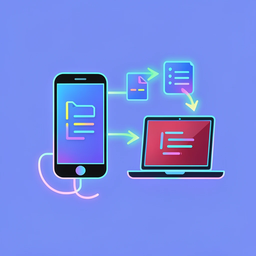
Fast file transfer between
PC and phone — over Wi-Fi
No cables. No cloud. No account. Just connect to the same Wi-Fi and start sharing files, photos, videos, and messages instantly.
Get it on Microsoft Store
No cables. No cloud. No account. Just connect to the same Wi-Fi and start sharing files, photos, videos, and messages instantly.
Get it on Microsoft Store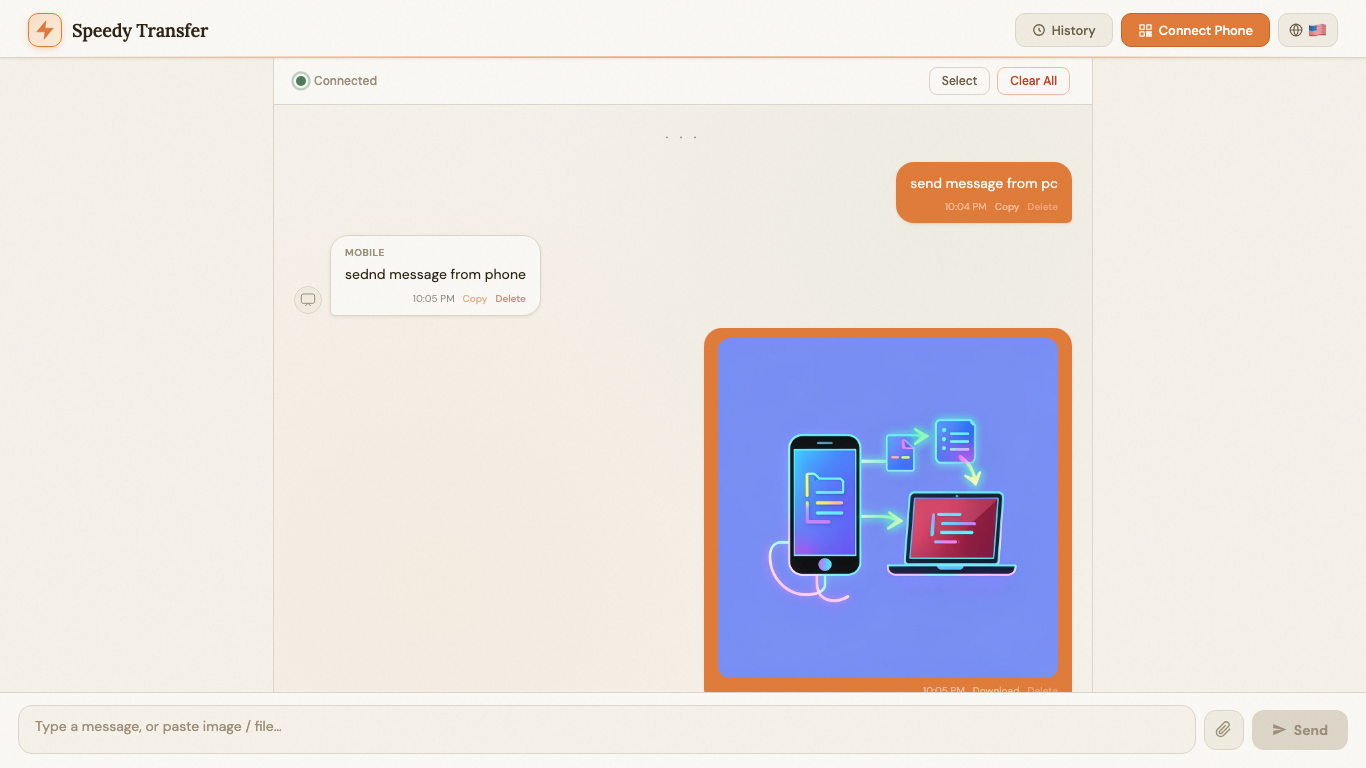
Files arrive in real time over your local Wi-Fi network — no waiting for uploads or downloads.
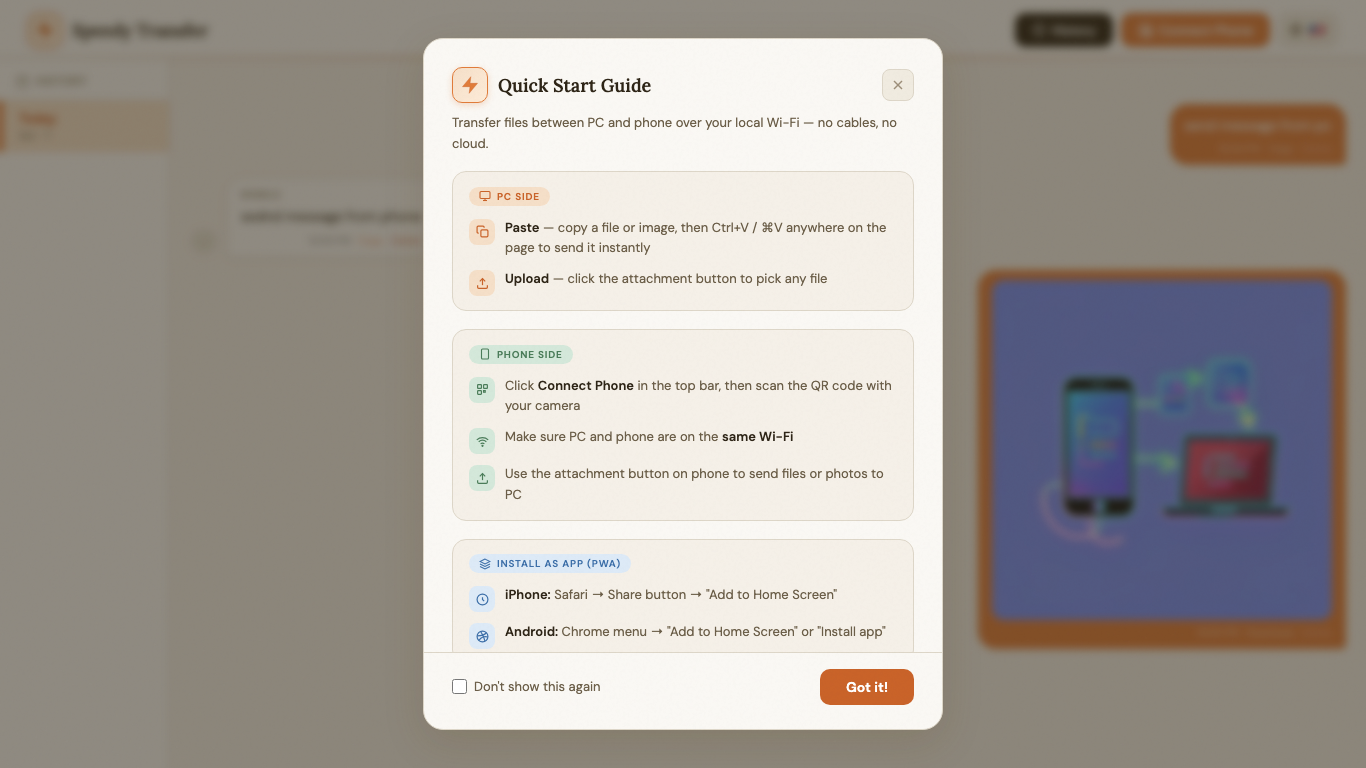
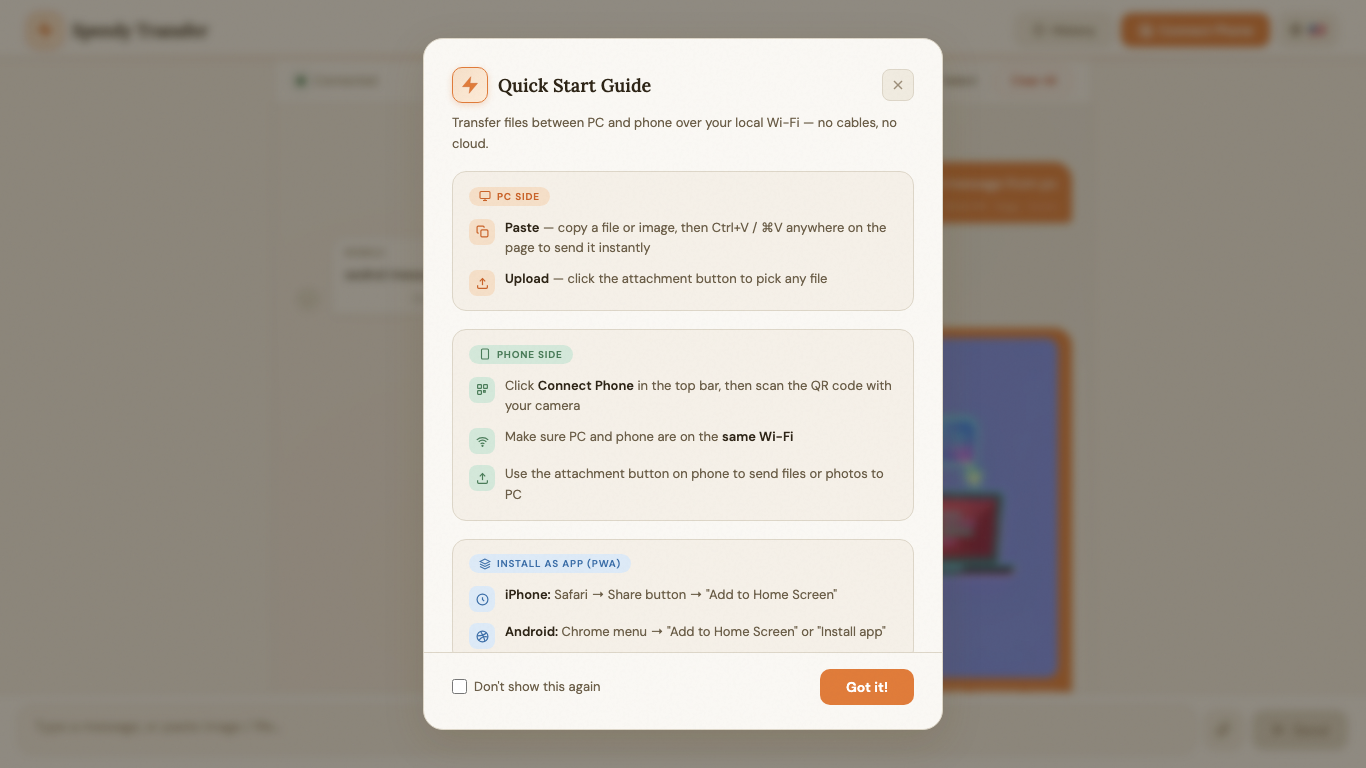
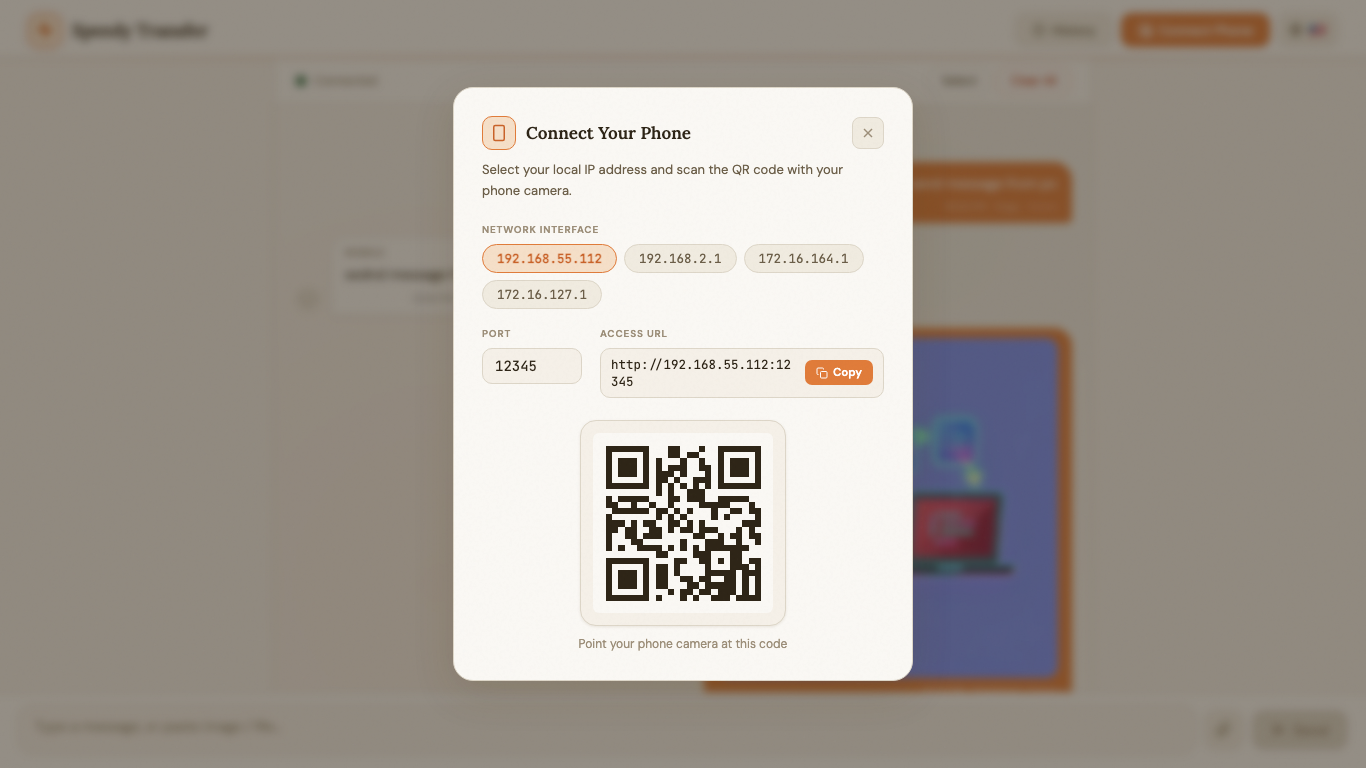
Open the browser on your phone, scan the QR code, and you're connected. No app to install on mobile.
All data travels within your home or office Wi-Fi. Nothing is sent to external servers or cloud storage.
Send photos, videos, audio recordings, documents, archives — any file up to 500 MB per transfer.
A familiar messaging-style interface makes two-way communication between PC and phone natural and easy.
Browse all past transfers organized by date. Tap to preview images, play audio and video inline.
Available in English, Simplified & Traditional Chinese, Japanese, Korean, French, German, Spanish, and Italian.
Launch the app from the Start menu. It starts a local server on your Wi-Fi network automatically.
Click the QR code button in the app, then scan it with your phone's camera. Your phone opens the interface in any browser.
Type a message, tap the attachment icon to send photos or files, or record a voice message. Everything appears instantly on the other device.